 Profiles “Rates” tab
Rates |
Front Office Profiles “Rates” tab
|
Contents Hide |
You can define different rate types in a guest profile. For instance, if a company has a different special rates for overnight stays with breakfast, meetings, and trade fair periods, you can enter this information in the system data and assign it within the profile. You can also use this tab to assign season-specific rates.
Assigning priorities to the rates allows you to specify which rate is proposed in the reservation by default. For instance, you can set the “Overnight + breakfast” rate as the default rate for every reservation.
If reservations are then made for a meeting event, use the drop-down list in the dialog box for reservations to select the rate code applicable for this company. These rate codes are marked with a “*”. To change rate codes, use the Rate by day grid.
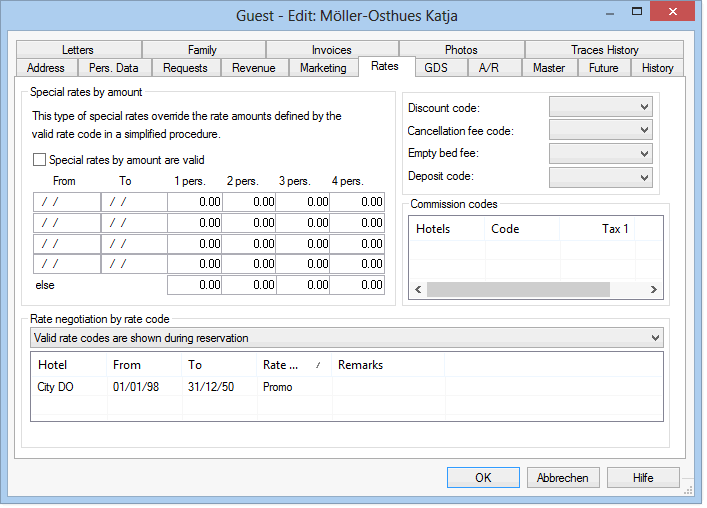
You can enter differing special rates for up to four persons. You can enter four special rates for different periods. In this case, the fifth rate you enter always applies if the reservations do not fall within one of these periods. To enable the special rates, you must select the  Special rates by amount are valid check box.
Details:
Use the “From” and “To” boxes to enter the period during which the rates are valid and enter the rates for a reservation with 1, 2, 3, or 4 adults in the subsequent boxes.
Finally, use the “else” box to enter the prices applicable for 1 to 4 persons if the reservation does not fall within the periods specified.
Right-click in the table in the lower pane to open the context menu and assign a specific rate code:
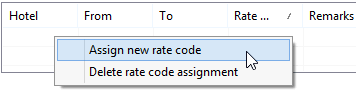
If you select the “New rate codes” option, an input dialog appears for making the assignment:
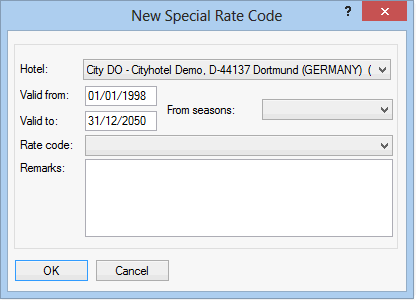
Use the selection box at the top of the window to determine which rate code is proposed for the guest by default when making a reservation.

“Valid rate codes are assigned to reservation automatically”:
All valid rate codes from the list are displayed when making a reservation: the first valid rate code is displayed in the reservation as soon as you select the guest profile.

Fig.: Reservation dialog box
The first available rate is displayed using ***. This makes it easier to identify the actual rate applicable as proposed by the system. You can use the “Rate code” drop-down list to select the other available rate codes. If additional rate codes have been assigned in the guest profile, all relevant rate codes are marked with a * within the list.
This rate code takes priority over all other rates within the reservation. The system increases/reduces the rate automatically if a change is made to the rate during the reservation period based on the period used to define the assigned rate codes or seasonal periods.
“Valid rate codes are shown during reservation”:
When using this option, the first valid rate code is again proposed as the default value.

Fig.: Reservation dialog box
In this case, the rate code is identified with *. You can use the drop-down list to view all other valid rate codes assigned within the profile. The sequence in which they are displayed corresponds to their assignment in the profile. In other words, the rate code that appears first in the profile will also be displayed first here.
The selected rate code is retained for the reservation.
Right-click a rate code within the list to open the context menu, which provides access to several options.
You can change the order of entries within the list. The sequence in which the assigned rate codes are listed determines the order in which rate codes are displayed and the rate code shown by default when making a reservation.
|
One level higher |
Example: If the rate code is in the third place in the list of assigned rate codes, use this option to move it to second place. |
|
One level lower |
Moves the rate code lower in the sequence. |
|
Set to first level |
Use this option to move a rate code directly to first place if it is to be used as the default rate code. |
|
Set within all accounts and contacts |
If a special rate is defined for a master profile, you can use this option to copy the assignment of this rate code to all assigned sub-profiles. The assignment is also applied for all contacts in protel Sales and Marketing. |
|
Discount code |
Use the drop-down list to select specific discount codes from the system data. The discount is not posted automatically. Instead, the system asks whether the discount should be posted during the check-out process. If the person performing the check-out answers [Yes], the discount is calculated and posted using the criteria defined in the system data for the discount code applicable to this profile. Please note that the discount calculation applies to all charges on the invoice, not just the postings relating to the cost of the overnight stay. For example, if a 10% discount code has been created for all extras (statistic group), all charges are discounted, including telephone charges and other extras. |
|
|
Cancellation fee code / Empty bed fee |
The cancelation and empty bed fees are used to calculate and show the applicable information on an end-of-day report. You can decide whether or not to calculate the cancelation/empty bed fees.
|
|
|
Deposit code |
Use this to enter a deposit code that has already been defined in the system data. If this guest makes a reservation, a deposit will automatically be generated for the reservation based on this code. |
You can enter commission codes for a guest profile.
To do this, right-click anywhere in the “Commission codes” pane. Then use the context menu to create new codes or edit and delete existing codes.
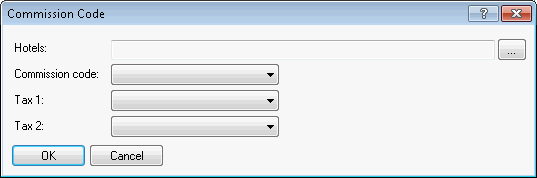
Use this dialog box to enter a commission code that has already been created in the system data. Commission codes may be assigned only for the “Company, Travel agent, Source” or “Group” profile types.
If you want to work with net commission for foreign reservations, use the “Tax 1” and “Tax 2” fields to select differing tax rates. These must also have been previously created in the system data.
Click [ to enter the commission code in the list.
|
|
Available user rights |
|
|
182 |
FO Guest profiles (rates) |
Enables/disables the Rates tab in the guest profile. |

 Please contact protel hotelsoftware GmbH Dortmund to enable this feature.