Pane |
|
|
[Navigator > Reservation]
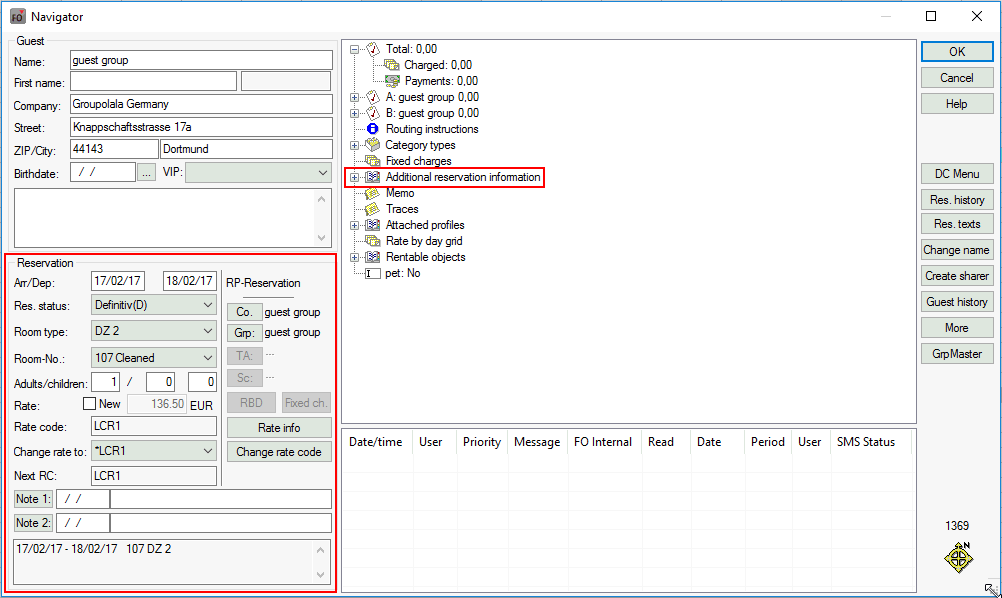
In this pane, you can view and edit information about the reservation. Right-click anywhere within this pane to open the detailed Reservation form.
Certain, potentially conflicting data will not be displayed for reservations with a move. Details about the move will be displayed in the “Guest messages” pane, so no Note boxes will be displayed.
Arr/Dep: |
Arrival/departure date For reservations with a move, the entire stay will be displayed irrespective of which part of the room plan was clicked. |
Res. status |
Displays the reservation status. You can also choose a different status here. |
Room type |
The selected room type As soon as the category is changed, a new number appears in the “Room-No.” box. |
Room-No. |
Shows only room numbers of the room type posted that are available for the reservation period selected. To choose a room of a different type, you first have to change the type. |
Adults/children |
Number of adults and children (Child 1 and Child 2 from the Reservation form) |
Rate
|
You must select this check box if you want to change the amount, but not the rate code. The amount field is then no longer grayed out, and you can amend the rate as required. If the check box is selected and the rate code is changed, the rate will not be updated with the rate for the new rate code. |
Rate code |
The currently selected rate code |
Change rate to |
Use this option to change the rate code. The rate will then be updated accordingly. Choose a new rate code from the drop-down list and click to confirm the prompt. If the Rate
|
|
Next Rate code: |
, , , |
Names for company, TA, source and group reservations will be displayed as buttons. Click these buttons to display the profile assigned to the reservation. |
If the reservation covers multiple season periods, clicking this button opens the Rate by day grid. |
|
Rate info |
Click this button for information about how the displayed rate has been calculated. |
Note 1 / Note 2 |
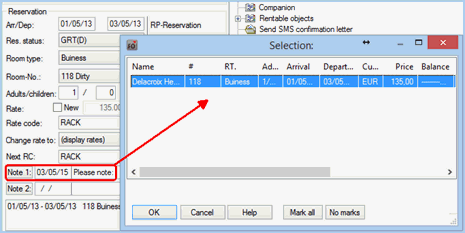
If any notes were entered during the reservation, you can display these by clicking the and buttons. You can also use this option to modify notes or create new ones. |
Room info box |
Displays additional information about the reservation: reservation period (from / to), room number, room type. Note that if a move exists for the reservation, this is indicated in this info box as follows:
|
|
Available settings (Navigator > Reservation pane) |
If the "note 1/2" field has been changed for sharer reservations in Navigator, a query follows upon demand asking for which sharer the changes are to be adopted. Simply close the window with [Cancel], should the changes not be adopted.
|
|
|
Available user rights |
|
325 |
FO Rate Alteration |
Required for users to be able to modify rates. |
326 |
FO Rate code alteration |
Required for users to be able to modify rate codes. |
200 |
FO Navigator (edit notes) |
Controls access to the Note boxes in the “Reservation” pane. |
Right-click the “Change rate to” drop-down
list ( ) to open the following window:
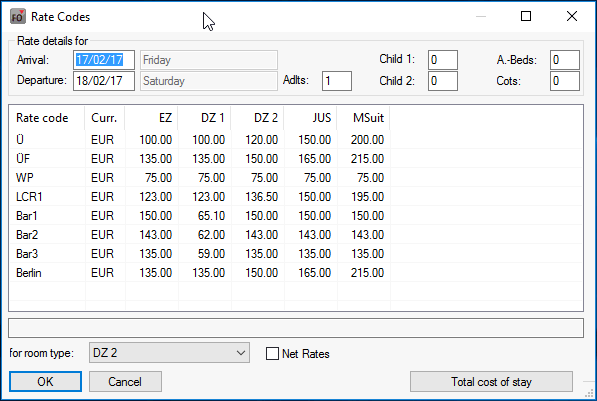
This shows a list of all rate codes and room types together with their associated rates. Rate codes that are not valid for the period selected will be included in the list, but no rate will be shown.
If the arrival and departure dates are changed, the rate could also change; for instance, if the daily rate is reduced for stays exceeding three nights. The rate will also change (based on the rate information stored in the system data) if the number of adults, children or additional beds is changed.
To do this, simply change the number in the “Adults” box or the arrival or departure date and press the Tab key to confirm (do NOT press Enter because this will apply the entries to the reservation!). You will then be able to see immediately how the rate changes when certain reservation parameters are changed.
Display net
rates: Select the  “Display net rates” check box to display all the rates as net rates.
For room
type: The “for room type” drop-down list is connected to the button. Select a rate code,
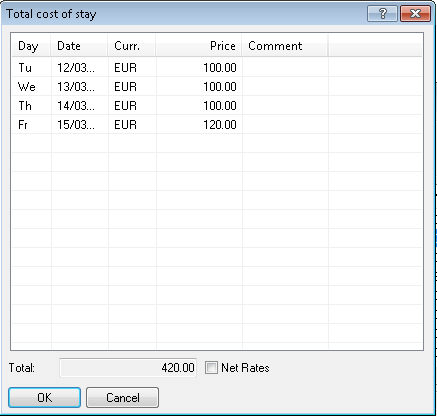
choose the room type, and click the button. You will then be shown a breakdown of the total
cost that would apply for this stay, taking into account the rate
by day and room type selected. Weekend days are displayed in red.
Select the Net
Rates check box in this case too to display all the rates as net
rates.

 - Reservation